How to Stop Programs from Opening on Startup (Windows & Mac)
- 23 January 2026
- Technology
Key Takeaways
- Windows users can disable apps instantly via Task Manager (Ctrl + Shift + Esc).
- Mac users must navigate to System Settings > General > Login Items.
- High-impact apps like Spotify, Steam, and Teams significantly slow down boot times.
- Never disable security software, audio drivers, or cloud sync tools you use daily.
- Regular maintenance of startup lists prevents background RAM drain.
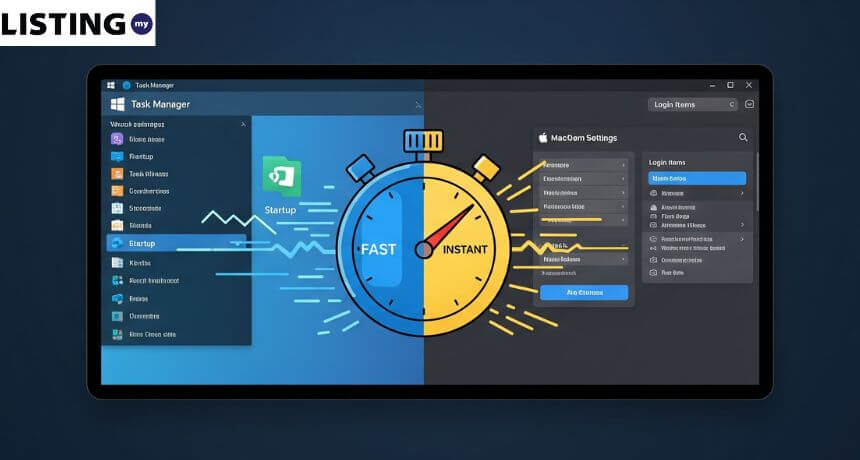
To stop programs from opening on startup,
Windows users should access Task Manager > Startup Apps and disable high-impact software,
while Mac users need to check System Settings > General > Login Items.
Waiting five minutes for your laptop to become usable after pressing the power button is frustrating and unnecessary. This lag is rarely a hardware failure; usually, it is simply too many applications fighting for resources the moment you log in. This guide walks you through reclaiming your boot speed on both Windows and macOS.
⚡ Startup Method Comparison
OS Version | Primary Method | Difficulty | Risk Level | Time Required |
Windows 11 | Task Manager | Very Low | Low | 30 Seconds |
Windows 10 | Task Manager | Very Low | Low | 30 Seconds |
macOS (Ventura+) | System Settings | Low | Low | 1 Minute |
macOS (Monterey/Older) | System Preferences | Low | Low | 1 Minute |
Deep Clean | Third-Party Tools | Medium | Moderate | 5+ Minutes |
How to Disable Startup Apps on Windows 11 and 10
Task Manager provides the safest and fastest way to view and disable background applications without navigating complex settings menus.
Windows 10 and 11 make it incredibly easy to see exactly which programs are slowing you down. You do not need to uninstall these applications; you are simply telling them to wait until you actually click them to open.
Steps to Disable:
- Open Task Manager: Press Ctrl + Shift + Esc simultaneously.
- Navigate to Startup: Click the “Startup Apps” icon (gauge icon) on the left sidebar (Windows 11) or the “Startup” tab (Windows 10).
- Sort by Impact: Click the “Startup impact” column header to see the heaviest apps at the top.
- Disable: Right-click the program you want to stop and select Disable.
⚠️ Common Heavy Offenders to Disable
- Gaming Clients: Steam, Epic Games Launcher, Discord (unless you game immediately upon boot).
- Communication: Microsoft Teams, Skype, Slack (these consume massive RAM).
- Music: Spotify (often updates in the background).
- Cloud Storage: OneDrive or Google Drive (only disable if you don’t need instant file syncing).
Note: Disabling these does not delete your data. It just stops them from auto-loading.
How to Remove Login Items on macOS (Ventura & Sonoma)
Mac users must manage “Login Items” within System Settings to prevent applications from launching automatically upon user login.
macOS handles startup items differently than Windows. While Macs are generally efficient, a cluttered “Login Items” list will result in the spinning beachball cursor immediately after you enter your password.
Steps for macOS Ventura and Newer:
- Open Settings: Click the Apple Menu () > System Settings.
- Find General: Click General in the sidebar, then select Login Items.
- Review the List: Look under “Open at Login”.
- Remove: Select the app you want to stop and click the minus (-) button.
Steps for macOS Monterey and Older:
- Go to System Preferences > Users & Groups.
- Select your user account and click the Login Items tab.
- Click the lock icon to make changes, then select apps and hit the minus (-) button.
💡 Allow in the Background vs. Open at Login
macOS clearly separates apps that open windows (Login Items) from apps that perform tasks silently (Allow in the Background).
- Focus on Login Items first: These visibly slow down your desktop availability.
- Be careful with Background items: Many of these are updaters for Adobe or Microsoft software. Turning them off might prevent necessary security updates.
Looking to speed up your business’s presence, not just your PC?
A clean startup list gets your computer running fast, and a strong online listing gets your business found fast.
Make sure your company is optimized and discoverable on Malaysia’s premier business directory, Listing.my.
Which Programs Should You Never Disable?
Indiscriminately disabling every startup item can break essential system functions like audio, trackpad gestures, or antivirus protection.
While cleaning up is satisfying, you need to recognize the difference between “bloatware” and “system drivers.” If you see a manufacturer name like Intel, Realtek, or Synaptics, proceed with caution.
Safe-to-Keep Checklist:
- Security Software: Norton, McAfee, Bitdefender, or Windows Security notification icons.
- Audio Drivers: Realtek HD Audio Manager (disabling this may kill your sound).
- Peripherals: Logitech G-Hub or Razer Synapse (if you rely on custom mouse/keyboard keybinds).
- Backup Utilities: Backblaze or Time Machine schedulers.
Rule of Thumb: If you don’t recognize the name, Google it before you disable it.
Disabling startup apps is just step one. For a full cleanup checklist including hardware upgrades and deep cleaning, read our How to Fix a Slow Laptop.
Conclusion: Reclaim Your Boot Speed
Stopping programs from opening on startup is the highest ROI (Return on Investment) maintenance task you can perform on a computer. It costs zero dollars, takes two minutes, and the results are immediately noticeable the next time you restart your machine. Check your startup list monthly to prevent new apps from sneaking back in.