Laptop Overheating? How Dust and Thermal Throttling Slow Down Your PC
- 28 January 2026
- Technology
Key Takeaways
- Thermal throttling is a safety mechanism where your CPU slows down to prevent burning out.
- Dust blockage is the #1 physical cause of overheating in older laptops.
- Free tools like HWMonitor provide instant insights into your hardware’s temperature.
- Compressed air must be used carefully to avoid damaging fan bearings.
- Cooling pads help manage airflow but cannot fix internal dust clogs.
Thermal throttling occurs when your laptop’s internal temperature rises to unsafe levels (usually above 90°C), forcing the CPU to slow down to prevent permanent damage.
This manifests as sudden lag during gaming or heavy tasks. The most common fix involves clearing dust from intake vents and using software to monitor real-time thermal performance.
Your laptop sounds like a jet engine, and simple tasks are taking forever. It’s frustrating, but it doesn’t always mean your computer is obsolete.
Heat is the silent performance killer. When your hardware can’t breathe, it protects itself by killing your speed. Here is how to diagnose the heat, clean the dust, and get your performance back.
🌡️ Temperature Safety Zones
Component | Idle Temp (Safe) | Load Temp (Safe) | Dangerous Zone (Throttling) | Action Required |
CPU (Processor) | 35°C – 50°C | 60°C – 80°C | 90°C+ | Clean vents / Re-paste |
GPU (Graphics) | 30°C – 45°C | 65°C – 85°C | 90°C+ | Check airflow / Drivers |
Hard Drive | 25°C – 40°C | 40°C – 50°C | 55°C+ | Backup data immediately |
Laptop Chassis | Cool to touch | Warm | Hot to touch | Use cooling pad |
What Exactly Is Thermal Throttling?
It is a survival instinct for your computer hardware.
Imagine sprinting in a thick winter coat during summer. Eventually, you have to slow down to stop from passing out. Your CPU does the same thing. When the processor gets too hot, it deliberately lowers its clock speed (performance) to generate less heat.
This sudden drop in speed is what you feel as “lag” or “stuttering.” It happens most often during gaming, video editing, or even having too many browser tabs open on an older machine. If your fans are spinning at maximum speed but your computer is still slow, you are likely being throttled.
How Do I Check My CPU Temperature?
You cannot fix what you do not measure; use free software to see the truth.
Windows Task Manager shows usage, but not temperature. To see if you are cooking your components, you need a dedicated utility. HWMonitor or Core Temp are the industry standards for this.
- Download and install HWMonitor (use the free version).
- Run the program and look for the CPU entry.
- Check the “Value” (current), “Min,” and “Max” columns.
If your “Max” temperature hits 95°C or 100°C simply by opening a web browser, your cooling system has failed. This confirms that heat, not a virus or old age, is the culprit behind your slow PC.
Why Is Dust the Enemy of Speed?
Dust acts as an insulating blanket that blocks cool air from entering.
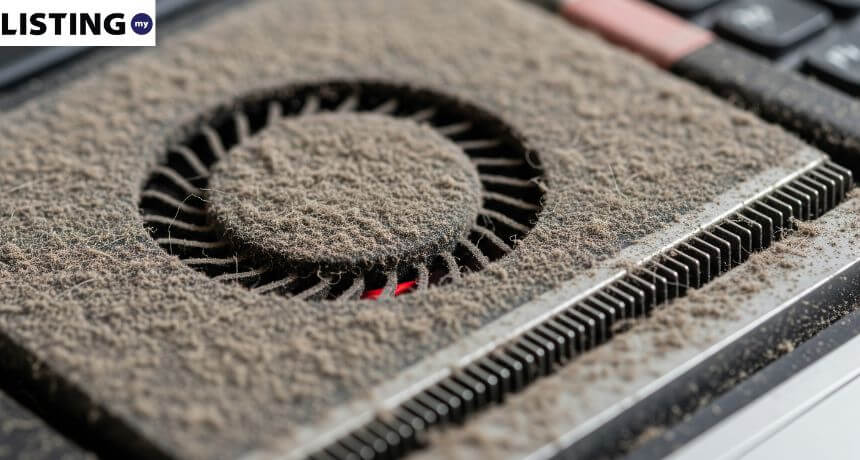
Laptops rely on a strict airflow channel: cool air enters through the bottom or sides, passes over a metal heatsink, and hot air is blown out the back. Over months and years, dust, pet hair, and lint clog the heatsink fins.
When this “radiator” gets blocked, the fan pushes air against a wall of dust. The heat creates a backup. The sensors detect this rising temperature and tell the fans to spin faster (creating noise) and the CPU to slow down (creating lag).
Expert Note: Using a laptop on a bed or carpet acts like a vacuum cleaner, sucking dust directly into the intake vents. Always use a hard surface.
How to Safely Clean Your Laptop Vents
Compressed air is effective, but dangerous if used incorrectly.
You do not always need to take the laptop apart to improve thermals. A basic external cleaning can drop temperatures by 5–10 degrees.
The Safe Cleaning Method:
- Power Down: Turn off the laptop completely and unplug it.
- Short Bursts: Use a can of compressed air. Do not hold the nozzle too close.
- Secure the Fan: This is critical. Do not let the compressed air spin the fan blades wildly. Use a toothpick or pin to hold the fan blades still through the vent if visible. Spinning a fan too fast with air can generate back-voltage and fry the motherboard.
- Angle: Spray air into the exhaust vents to push dust out of the intakes, then do the reverse.
Do Cooling Pads Actually Fix Overheating?
They assist airflow, but they are not a cure for internal blockages.
A laptop cooling pad works by forcing extra air into the intake vents. If your internal vents are clean, a cooling pad can drop temperatures by 3°C to 8°C, which prevents throttling during long gaming sessions.
However, if your internal heatsink is 100% blocked by a “dust bunny,” a cooling pad will do nothing. You must clean the vents first. Think of a cooling pad as a turbocharger—it only works if the engine is running clean.
Still dealing with lag after cleaning? It might be software-related. Check out our How to Fix a Slow Laptop.
Conclusion
Heat is the physical limit of your laptop’s performance. By understanding thermal throttling and keeping those vents clear of dust, you can extend the life of your machine by years. Don’t let a RM20 can of compressed air be the reason you spend RM4000 on a new laptop.
Looking for a Professional?
If you’ve decided a thermal paste replacement or deep internal cleaning is needed, find trusted local PC repair services and other experts on Listing.my—your local business directory.