SSD vs. HDD: The #1 Hardware Upgrade to Fix a Slow Laptop
- 21 January 2026
- Technology
Key Takeaways
- SSDs offer 300% to 500% faster boot times than traditional mechanical hard drives.
- Mechanical drives create performance bottlenecks because they rely on spinning physical platters.
- Cloning software allows you to migrate your current Windows installation without losing data.
- 2.5-inch SATA and M.2 NVMe are the two standard connection types you must identify.
- Upgrading storage saves money by extending your laptop’s lifespan by 2–3 years.
SSD or HDD?
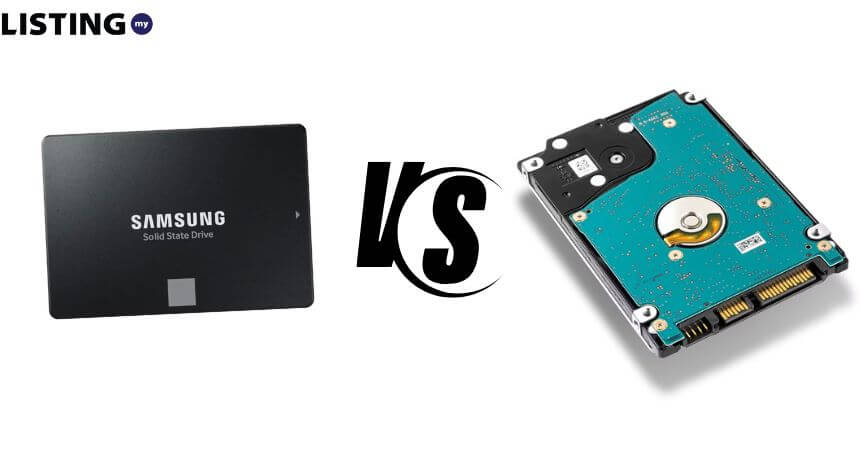
An SSD (Solid State Drive) is significantly faster than an HDD (Hard Disk Drive) because it uses flash memory to read data instantly, whereas an HDD relies on a spinning physical disk.
For a slow laptop, this means Windows boots in seconds rather than minutes, and apps launch almost immediately.
If you are staring at a frozen screen or waiting ten minutes just to open a browser, your laptop isn’t necessarily “broken.”
It might just be choked by old technology HDD.
Before you spend thousands on a brand-new machine, consider this: the single most effective repair for a sluggish computer is swapping the storage drive.
This guide breaks down the real-world performance differences and explains how a simple swap can make a 5-year-old laptop run like new.
🧾 Comparison: SSD vs. HDD Performance
Feature | Mechanical HDD (Hard Disk Drive) | SATA SSD (Solid State Drive) | NVMe SSD (High Performance) | Winner |
Boot Time | 60–120 Seconds | 10–20 Seconds | 5–10 Seconds | SSD |
Data Transfer | 80–160 MB/s | 500–550 MB/s | 3,500+ MB/s | SSD |
Durability | Fragile (Moving Parts) | Durable (Shock Resistant) | Durable (Shock Resistant) | SSD |
Noise | Audible Spinning/Clicking | Silent | Silent | SSD |
Cost (1TB) | Lowest (RM$/GB) | Moderate | Moderate to High | HDD |
Best For | Mass Media Storage | General Use / Laptops | Gaming / Heavy Work or Editing | SSD |
Why Mechanical HDDs Are the Bottleneck
Your processor is waiting for data that your hard drive is too slow to deliver.
Inside a traditional HDD, a mechanical arm physically moves across a spinning magnetic platter to find your files. It works like a record player.
When your operating system needs to load thousands of small files to boot up, that mechanical arm has to jump back and forth frantically.
This physical limitation creates a “bottleneck.”
No matter how fast your CPU is, it cannot work until the hard drive sends the data.
Tech Fact: A standard laptop HDD spins at 5,400 revolutions per minute (RPM). While that sounds fast, it is glacial compared to the speed of modern processors, which operate in gigahertz (billions of cycles per second).
The Real-World Speed Difference
Switching to an SSD removes the physical wait times completely.
Because SSDs use electrical impulses to retrieve data, there is no “seek time.” The difference is not just visible in benchmarks; you feel it every time you click something.
In practical scenarios, an SSD upgrade results in:
- Instant Wake: Laptops wake from sleep mode almost immediately.
- Snappy Multitasking: Switching between Chrome tabs and Word documents doesn’t cause a stutter.
- Silent Operation: The grinding and clicking sounds of the old drive disappear.
Performance Stat:
In a standard Windows 10/11 boot test, a 5400 RPM HDD averages 90 seconds to reach a usable desktop.
A SATA SSD typically completes the same task in 18 seconds.
Choosing the Right SSD: SATA vs. NVMe
You must check your laptop manual to see which slot you have available.
Not all SSDs fit all laptops. There are two main form factors you will encounter when shopping for parts:
- 2.5-inch SATA SSD: These look exactly like your old laptop hard drive. They are rectangular and slide into the same slot. If you have an older laptop (pre-2016), this is likely what you need.
- M.2 NVMe SSD: These look like a stick of gum (RAM). They plug directly into the motherboard and offer the fastest speeds possible. Most modern laptops have a dedicated slot for this.
Buying Tip: If your laptop supports NVMe, buy it. The price difference between SATA and NVMe is now negligible, but NVMe is up to 6x faster than SATA.
If you’re looking for a trusted local computer shop to handle the swap, you can find verified local professionals and compare services on Listing.my, your dedicated business directory for tech and repair services.
Basic Steps to Clone and Swap Your Drive
You do not need to reinstall Windows from scratch if you use cloning software.
The most intimidating part of this process is the fear of losing data. However, “cloning” allows you to make an exact 1:1 copy of your old slow drive onto the new fast SSD.
- Get a USB Adapter: You need a cable to connect the new SSD to your laptop externally (USB-to-SATA or USB-to-NVMe).
- Install Cloning Software: Tools like Macrium Reflect Free (Trial) or Clonezilla are reliable options.
- Start the Clone: Select your old HDD as “Source” and the new SSD as “Destination.” Let it run (this takes 1–3 hours).
- The Swap: Turn off the laptop, unscrew the back panel, unplug the old drive, and plug in the new one.
- Boot Up: Turn it on. It will look exactly the same as before, just much faster.
Note: If you are uncomfortable opening your laptop, many local computer shops offer this service for a small labor fee.
Still unsure if hardware is the only issue? If you want other ways to speed up your PC besides hardware, check out our How to Fix a Slow Laptop.
Speed Up Your Workflow Today
Don’t let a RM200 part be the reason your productivity suffers.
An SSD upgrade is the most cost-effective way to modernize an aging machine without buying a new one.